Gym Analytics
Your gym's Analytics page shows who uses Crux at your gym and how your climbs are doing. It's available to your gym's admins.
To open it, go to Gym Settings → "Analytics" (under Insights and promotion), or tap the "Analytics" button on your gym page.
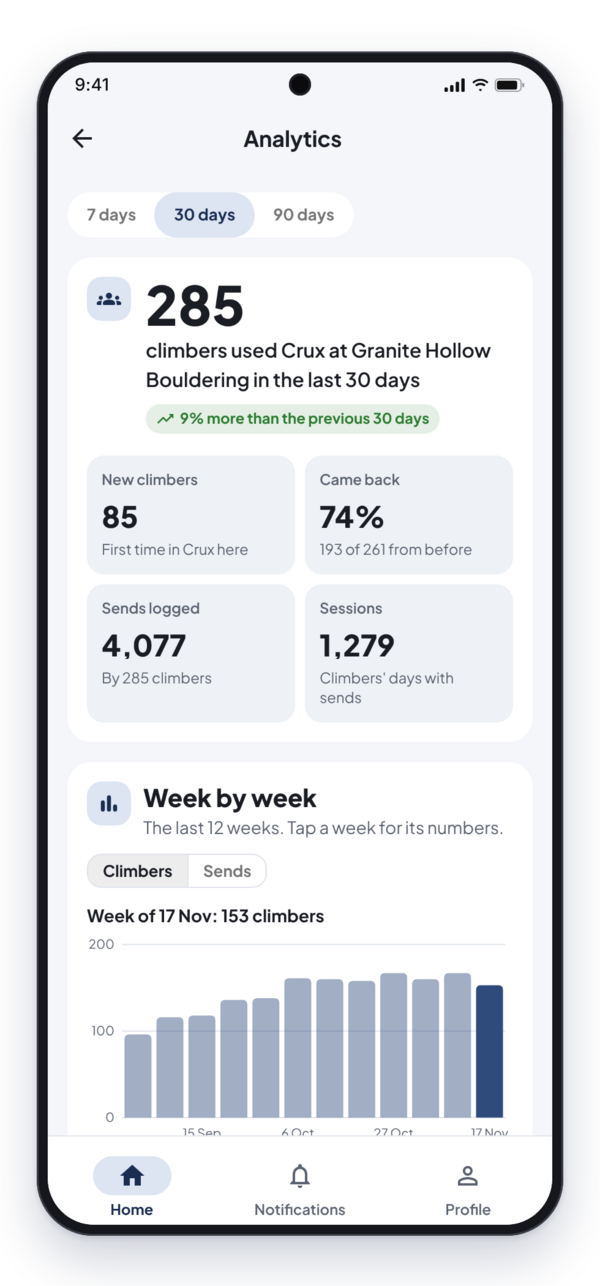
Choose a period at the top: 7 days, 30 days or 90 days.
What's on the Page
- Summary – How many climbers used Crux at your gym, with New climbers, climbers who Came back, Sends logged and Sessions, each compared with the previous period.
- Week by week – Climbers and sends over the last 12 weeks. Tap a week for its numbers.
- Busy times – Your busiest days and hours, from the last 90 days.
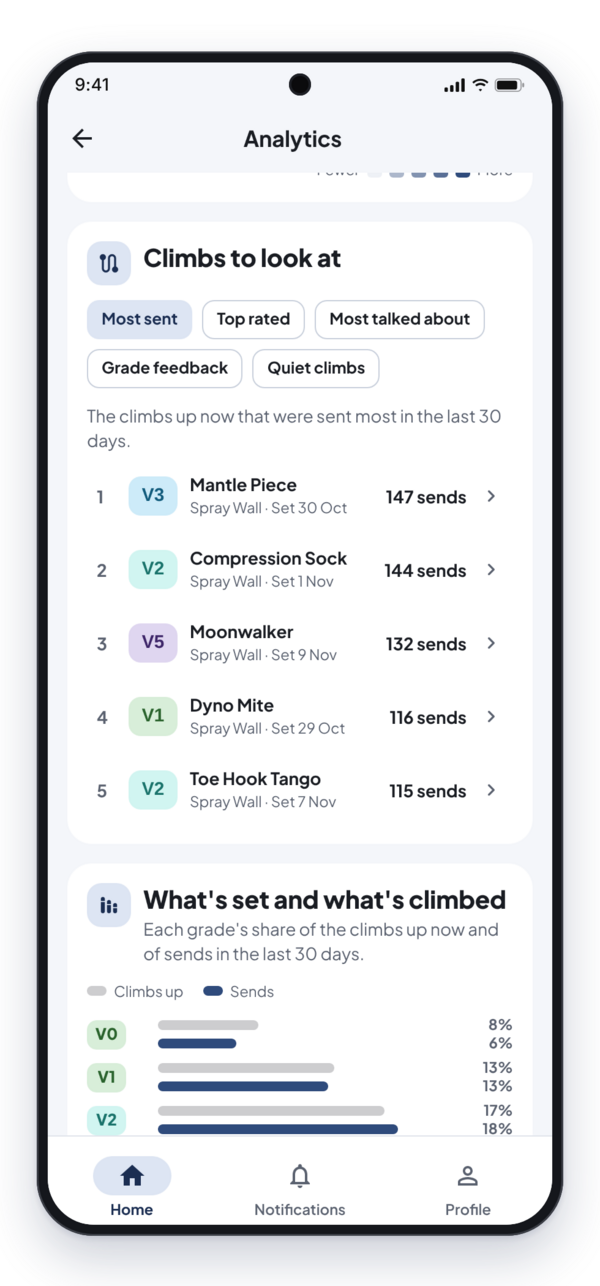
- What's set and what's climbed – Each grade's share of the climbs up now, next to its share of sends. Crux points out grades climbers might like more of.
- Climbs to look at – The climbs up now that are Most sent, Top rated and Most talked about, climbs with Grade feedback (where 2 or more climbers suggested a different grade), and Quiet climbs that might be ready to come down.
- Climber feedback – Comments, ratings, grade votes, followers and poster scans.
- Since you joined Crux – Your gym's climbers, sends and climbs posted, all time.